Are you tired of wasting time clicking through endless menus when you know there has to be a faster way? Keyboard shortcuts are the “cheat codes” smart professionals use to turbocharge their workflow, cut out repetitive mouse movements, and accomplish more in less time. But with so many tools, apps, and platforms each having their own shortcuts, it’s easy to get lost or overwhelmed. In this guide, we get right to the good stuff: proven keyboard shortcut hacks and real-world tools for productivity and automation. Discover practical ways to use them in daily work and exactly how to implement these hacks for instant results.
Why Smart Professionals Rely on Keyboard Shortcuts
Time is money, especially for power users managing dozens of tasks, apps, and software tools. Keyboard shortcuts don’t just speed things up—they streamline entire workflows. Consider this: A single keyboard combo can replace five mouse clicks. Multiplied over hundreds of actions daily, shortcuts are the foundation of real productivity automation.
- Real efficiency: Less time on routine actions means more time for creative and high-value work.
- Universal value: Shortcuts work across operating systems, browsers, creative software, and productivity tools like Microsoft Office, Google Workspace, Slack, and more.
- Sustainable automation: Custom shortcuts can automate repetitive tasks, reducing errors and cognitive fatigue.
Essential Keyboard Shortcuts Everyone Should Master
These universal shortcuts work in most major apps and productivity software:
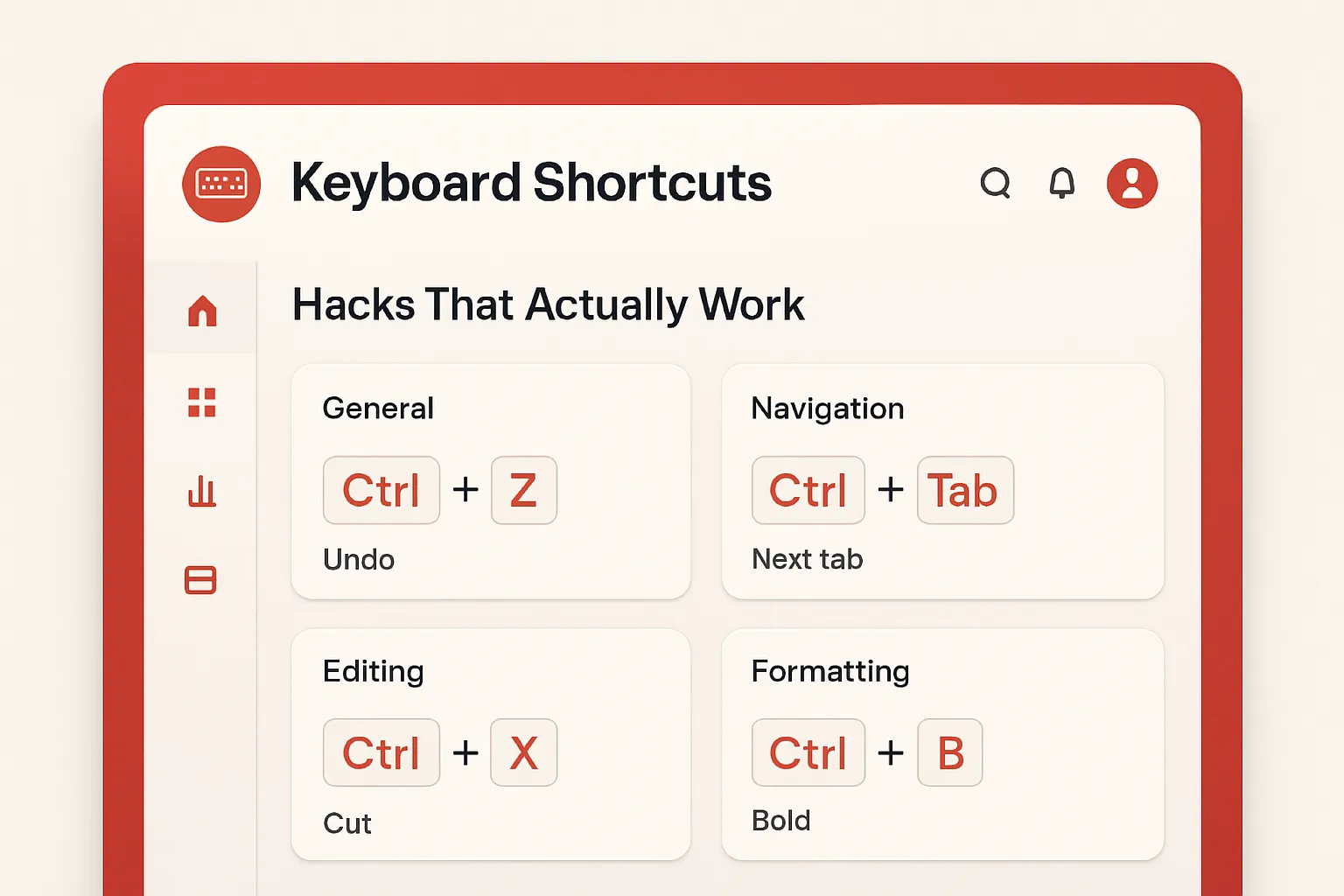
- Copy, Cut, Paste: Ctrl+C, Ctrl+X, Ctrl+V (Windows) or Cmd+C, Cmd+X, Cmd+V (Mac)
- Undo/Redo: Ctrl+Z, Ctrl+Y or Cmd+Z, Cmd+Shift+Z
- Switch apps/windows: Alt+Tab or Cmd+Tab
- Find: Ctrl+F or Cmd+F
- Quick save: Ctrl+S or Cmd+S
Knowing these is the baseline. But with dozens of software packages and tools in a modern tech stack, pro users go further—way further—by tailoring and supercharging their shortcuts.
Top Tools That Supercharge Keyboard Shortcuts
Ready to level up? These tools don’t just add shortcuts—they offer complete workflow automation, integration, and flexibility:
-
AutoHotkey (Windows Only):
- AutoHotkey allows users to script custom keyboard shortcuts for any software. Create hotkeys for complex tasks—opening apps, pasting templates, or automating multi-step sequences.
- How to use:
- Install AutoHotkey.
- Create a new
.ahkscript with your desired shortcuts (tons of templates online). - Double-click the script to run; your custom shortcuts are now active system-wide.
- Pros: Ultra customizable, works with virtually any software.
Cons: Windows only, learning curve for scripting. - Real-world example: Sales teams use AutoHotkey to automate email replies, fill forms, or activate CRM actions with a single keypress.
-
Keyboard Maestro (macOS):
- Keyboard Maestro is the top choice for Mac users who want to automate apps, typing, and system features. It lets you assign complex actions—even across multiple apps—to custom key combos.
- How to use:
- Download and install Keyboard Maestro.
- Create a new “macro” with your trigger shortcut and desired actions.
- Test the macro—your custom workflow is ready!
- Pros: Intuitive UI, integrates with most Mac apps, limitless automation.
Cons: Paid license, Mac-only. - Real-world example: Freelance designers automate repetitive Photoshop actions or text formatting jobs with one hotkey.
-
CheatSheet (macOS):
- CheatSheet shows you all available shortcuts for any Mac app when you hold down the Cmd key. Invaluable for discovering time-saving shortcuts across productivity apps and creative software.
- How to use:
- Download CheatSheet from the developer’s website.
- Open any app, hold Cmd for a second, and an overlay with all relevant shortcuts pops up.
- Pros: Simple, instant reference.
Cons: Doesn’t add new shortcuts—just reveals existing ones. - Real-world example: New hires quickly master essential Mac software with on-demand shortcut “cheat sheets.”
-
Shortkeys (Chrome Extension):
- Shortkeys lets you customize keyboard shortcuts to perform browser actions—navigate tabs, scroll, copy URLs, and more. Especially valuable for those who spend most of their day in Chrome-based SaaS tools.
- How to use:
- Add Shortkeys from the Chrome Web Store.
- Open the extension’s settings and add new shortcuts for your most-used browser actions.
- Pros: Highly customizable, works across popular SaaS platforms.
Cons: Limited to Chrome; may conflict with web-app shortcuts. - Real-world example: Customer support agents navigate helpdesk tickets lightning-fast with customized browser navigation keys.
-
Windows PowerToys:
- PowerToys is a Microsoft suite for power users. The “Keyboard Manager” tool lets you remap keys or combos system-wide, while other tools improve multitasking (FancyZones), file search, and more.
- How to use:
- Download Microsoft PowerToys from GitHub or the Windows Store.
- Open 'Keyboard Manager' and set up new key mappings or remap shortcuts across all your apps and tools.
- Pros: Free, powerful, actively updated.
Cons: Windows only, some features may require admin rights. - Real-world example: Dev teams streamline their entire coding environment—window management, app launches, clipboard history—all through keyboard customization.
Advanced Workflow Hacks with Keyboard Shortcuts
Now, let’s move beyond the basics. Here’s how real professionals automate high-impact workflows using these tools:
- Text Expansion: Apps like TextExpander (Mac/Windows) let you trigger canned emails, signatures, or code snippets with a few keystrokes. Sales, recruiters, and programmers swear by this for repetitive text.
- Multi-App Workflows: Use AutoHotkey or Keyboard Maestro to trigger sequences—like opening your email, browser, and notes app with one shortcut. Save minutes every morning.
- Data Entry Automation: Automate form-filling or pasting info between databases and SaaS apps. Shortcuts can paste from clipboard managers or pull in templates, reducing “swivel chair” time dramatically.
- Media Control: Streamers and creators use macro pads or tools like Elgato Stream Deck to switch scenes, play sound effects, or start recordings—all tied to keyboard shortcuts.
Pros and Cons of Shortcut-Based Productivity
- Pros:
- Faster navigation and action across apps and workflows
- Reduced dependence on the mouse, less risk of repetitive strain injuries
- Enables automation at any experience level
- Saves significant time when scaled to daily/weekly usage
- Cons:
- Some tools require initial setup or scripting know-how
- Can become confusing if shortcuts overlap or conflict
- Platform-specific solutions (e.g., Windows vs. Mac)
Real-World Scenarios: Keyboard Shortcut Wins
- Remote teams: Automate status updates or recurrent form entries in project management tools like Asana or Jira, cutting a 10-minute task to seconds.
- Writers and editors: Use Markdown editors with keyboard shortcuts or expand templates for citations, signatures, or formatting boilerplate content instantaneously.
- Developers: Rapid context switching between code, docs, and terminals with one keystroke, setting up IDE shortcuts to speed up entire coding workflows.
- Marketers: Use shortcuts to navigate analytics dashboards, copy URLs, or launch favorite campaign trackers rapidly.
FAQs About Keyboard Shortcuts and Productivity Tools
- Q: How can I discover shortcuts for the apps I use daily?
A: Most apps list shortcuts under their “Help” menu. Tools like CheatSheet (Mac) and browser extensions like Shortkeys make shortcut discovery instant. - Q: Is it possible to create universal shortcuts across multiple software?
A: Yes. With tools like AutoHotkey (Windows) or Keyboard Maestro (Mac), you can craft global shortcuts or macros that work across your entire operating system. - Q: Are there risks or downsides to using custom shortcuts?
A: Occasionally, custom shortcuts can conflict with native app shortcuts. Test thoroughly and document your favorite combos to avoid overlap and confusion. - Q: What’s the fastest way to build shortcut habits?
A: Start with the most impactful actions in your daily routine. Use visual reminders or tools like CheatSheet to reinforce memory until the shortcuts are automatic. - Q: Can keyboard shortcuts be used with mobile productivity apps?
A: Many iPad productivity apps support external keyboards with shortcuts, though customization is more limited than desktop tools.
Mastering keyboard shortcuts unlocks a hidden layer of speed, automation, and efficiency in your workflow—no matter what tools or software you rely on. With the right apps, a few hacks, and the willingness to tailor shortcuts for your daily needs, you’ll shift from “busy” to truly productive in a fraction of the time.