Keeping your digital accounts secure is more challenging than ever. With dozens of logins to remember for work, shopping, banking, and entertainment, even the most organized users get overwhelmed. Weak passwords or password reuse puts your personal and professional data at risk. That’s where password manager tools come in — they’re the backbone of modern productivity and security workflows, acting as an essential automation app for anyone with an online presence.
Why You Need a Password Manager Tool
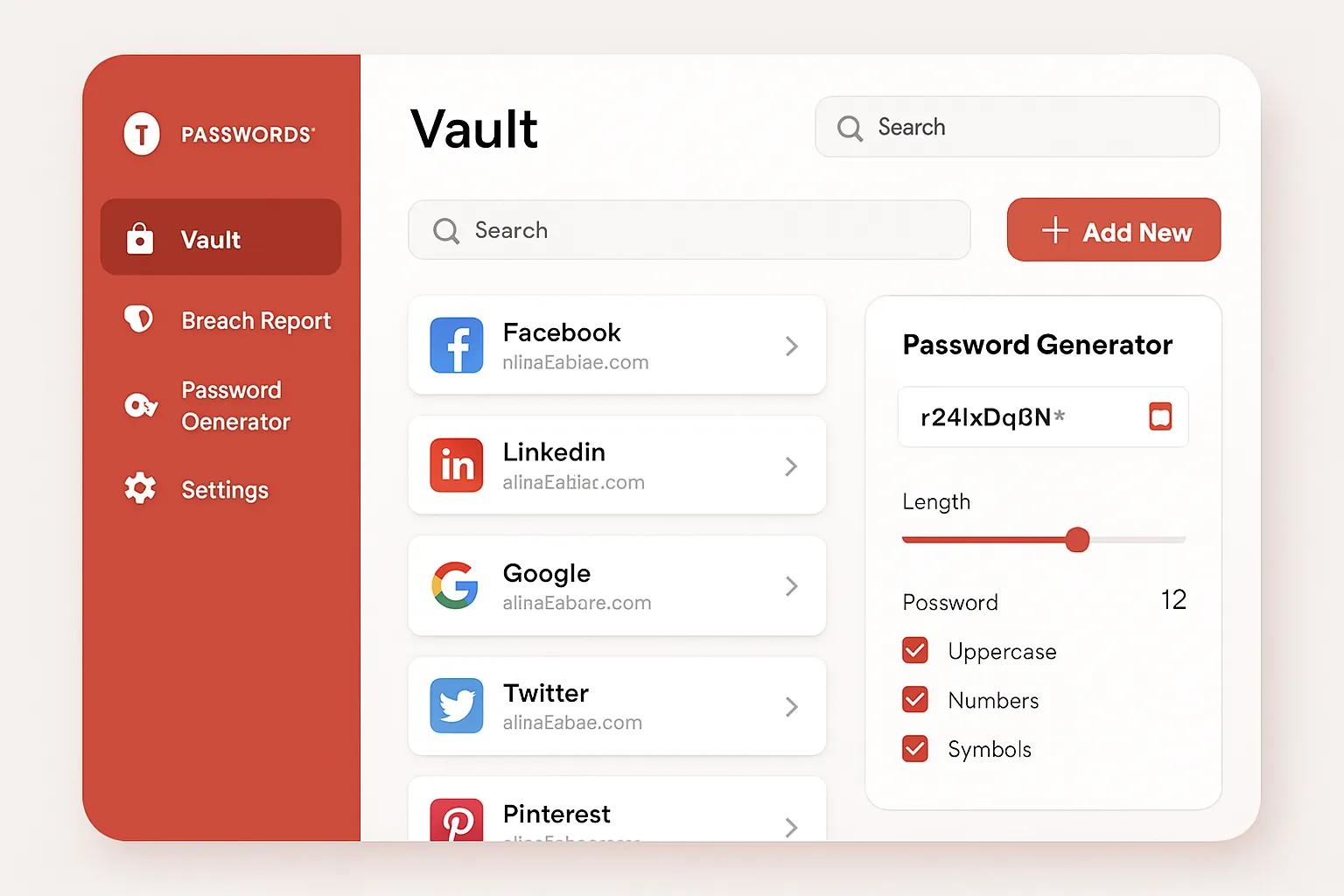
Password fatigue is real. Using the same or a few passwords across multiple sites is risky, but constantly resetting forgotten passwords kills productivity. A top-tier password manager app securely stores your logins, generates strong unique credentials, and auto-fills websites — all while keeping sensitive data encrypted and safe from cyberthreats. The best password manager software tools streamline how you access and organize accounts, making workflow automation simpler for individuals and teams alike.
Top Password Manager Tools for Security and Productivity
- 1Password: A favorite among businesses and families, 1Password integrates seamlessly with browsers, desktops, and mobile apps. Its shared vaults and granular permission settings make it ideal for collaborative environments. 1Password also supports biometric unlock, Watchtower security auditing, and travel mode, which temporarily removes sensitive data while you cross borders.
- LastPass: Known for its robust cloud sync and free tier, LastPass is great for users who need to access passwords across multiple devices. Its easy-to-use browser extension auto-fills credentials, while the Security Dashboard gives actionable suggestions to improve password hygiene.
- Dashlane: Dashlane stands out with its password health dashboard, dark web monitoring, and VPN inclusion. Its intuitive UI and cross-platform syncing make it an automation software that simplifies your digital protection process.
- Bitwarden: As an open-source solution, Bitwarden offers strong security, transparency, and wallet-friendly pricing. It's praised for its developer tools and API integrations, which are especially valuable for tech teams seeking workflow automation.
- NordPass: Built by the team behind NordVPN, NordPass provides strong encryption paired with a focus on user-friendly design. It supports secure password sharing and offers productivity-boosting shortcuts for quick access.
How to Use a Password Manager App: Step-by-Step Workflow
Here’s how to integrate a password manager into your daily workflow for maximum security and productivity:
-
Step 1: Choose and Install Your Tool
Pick a password manager app that suits your needs (personal or team use, platform compatibility). Download its desktop app and browser extension, and install the mobile app if available. -
Step 2: Create a Strong Master Password
This single password unlocks your vault — make it long, unique, and memorable. Your tool will guide you with password requirements and tips. -
Step 3: Import or Add Logins
Most software tools support automatic import from browsers or other password managers. Manually add important accounts and categorize them for workflow automation (e.g., work, finance, entertainment). -
Step 4: Enable Auto-Fill and Sync
Activate auto-fill for seamless login experiences and enable syncing across devices for uninterrupted productivity. -
Step 5: Adopt Security Best Practices
Use the built-in password generator to update weak or reused logins. Enable two-factor authentication for your manager app for extra security.
Real-World Use Cases: How Teams and Individuals Benefit
- IT Teams: Deploying Bitwarden for secure credential sharing, automating access controls, and integrating with DevOps workflows.
- Freelancers: Using 1Password to handle dozens of client logins, secure notes, and payment info without password reuse, boosting productivity with browser auto-fill.
- Remote Teams: Relying on LastPass for shared vaults to automate onboarding new members while protecting sensitive business accounts.
- Families: With Dashlane, families can keep medical, school, and private social logins separate yet accessible to trusted members.
- Journalists/Travelers: Using 1Password’s Travel Mode to temporarily minimize data risks when crossing sensitive borders.
Pros and Cons of Popular Password Manager Software
-
1Password
- Pros: Excellent team features, top-tier security, intuitive workflow automation tools.
- Cons: No free tier, some advanced features reserved for paid plans.
-
LastPass
- Pros: Generous free plan, easy onboarding, cross-platform sync.
- Cons: Recent breaches raised concerns, mobile-device limitations on free plan.
-
Dashlane
- Pros: Password changer, attractive UI, integrated VPN.
- Cons: Pricey premium plans, limited export options.
-
Bitwarden
- Pros: Affordable, open source, great for teams and individuals.
- Cons: Can be less polished visually, advanced features require configuration.
-
NordPass
- Pros: Modern interface, fast, unlimited passwords on all devices.
- Cons: Fewer team features, fewer integrations than mature rivals.
Maximizing Value: Tips for Productivity and Automation
- Use Categories and Tags: Organize credentials by workflow (work, home, projects) for fast access.
- Set Up Shared Vaults: For teams or families, create shared spaces with customized permissions to automate access management.
- Leverage Security Reports: Most tools analyze your stored passwords and provide actionable recommendations, saving you manual review time.
- Integrate with Other Tools: Connect your password manager to two-factor apps, SSO solutions, or even DevOps automation tools using APIs.
- Automate Password Changes: Some password managers offer one-click password update features for supported sites.
FAQ: Password Manager Tools
-
Are password managers safe for storing sensitive data?
Top password manager apps use strong end-to-end encryption, meaning only you can decrypt your data. Choose reputable software and enable multifactor authentication. -
Can I use a password manager across all my devices?
Yes, leading tools like 1Password, LastPass, and Bitwarden sync your encrypted vault across desktop, browser, and mobile apps for seamless workflow automation. -
What happens if I forget my master password?
Most managers cannot recover your master password, keeping your data secure from breaches. Some offer emergency access or hint options—always store master credentials safely. -
Is a free password manager app good enough for teams?
Free plans cover basic personal use. Teams benefit from premium features like advanced permission controls, usage reporting, and shared vaults—worth the investment for workflow productivity. -
Can password managers store more than just passwords?
Absolutely. Store secure notes, payment cards, IDs, software licenses, and even encrypted files for complete digital organization within your tool.
In today’s fast-paced digital world, choosing the right password manager tool isn’t just about security—it’s about streamlining your workflow, automating routine tasks, and maximizing productivity. Invest in a reputable app, follow best practices, and empower yourself or your team against password chaos and cyber threats.